
We all encounter the exact same situation every day: someone messages us on Telegram, WhatsApp, Slack, or email with a tricky proposal, an ambiguous request, a bug screenshot, or an urgent escalation. Before replying, you need to quickly figure out:
- What do they actually mean beneath the surface?
- Is there subtle manipulation, passive aggression, or a hidden agenda?
- How can you formulate a high-impact response in the right tone: diplomatic, firm, boundary-protecting, or disarming?
Usually, doing this with AI requires tedious manual friction:
- Take a screenshot of the chat.
- Minimize the messenger and open ChatGPT.
- Scroll through dozens of conversations to find the relevant context.
- Attach the screenshot from the photo library.
- Type out instructions: “Analyze this chat and help me reply”.
This friction kills focus and wastes valuable time during fast-moving negotiations.
To eliminate this overhead, I built an elegant automation using standard iOS Shortcuts that executes the entire workflow with a single triple-tap on the back of your iPhone:
- You perform a Triple Back Tap on the rear panel of your iPhone while inside any app (Telegram, WhatsApp, Mail, Safari).
- iOS instantly captures a screenshot.
- A native quick menu pops up asking for context: e.g., “💼 Sales & Negotiations”, “👥 Team & Tasks”, “🧠 Communication Psychology”, or a specific client.
- The shortcut instantly launches the official ChatGPT iOS app directly into the selected conversation where your custom system prompt and history already reside.
- The screenshot is already copied to your clipboard — just tap "Paste" and send.
No paid API tokens, no third-party proxies, and no complex server setups. Everything runs natively inside the official ChatGPT app on your iPhone.
The Architecture: Why Separate Context Matters
Most people use ChatGPT as a chaotic junk drawer: asking for code snippets, restaurant translations, and high-stakes client communication inside the same thread. As a result, the context window fills with irrelevant data, and the model reverts to generic corporate clichés.
The professional approach is to isolate communication contexts into dedicated, long-lived threads:
- Thread "Sales & Commercial Negotiations" — trained to detect price resistance, avoid unnecessary discounts, and guide conversations toward closed deals.
- Thread "Team & Contractors" — focused on deadlines, task delegation, and setting clear expectations without toxic friction.
- Thread "Executive Advisor & Psychology" — focused on empathy, spotting subtle manipulation tactics, and preserving personal boundaries.
Using iOS Deeplinks (URL Schemes), an iOS Shortcut can navigate directly into any specific conversation within the official ChatGPT app.
How to Get a Direct Link to a Specific ChatGPT Thread
The ChatGPT iOS mobile app doesn't have an obvious "Copy thread link" button. However, there is a simple browser trick:
- Open Safari or any web browser on your phone or desktop and log into chatgpt.com.
- Open the conversation you want to link to your shortcut (or create a new one and paste the system prompt provided below).
- Look at your browser address bar. The URL format is:
https://chatgpt.com/c/6770f92b-xxxx-xxxx-xxxx-xxxxxxxxxxxx - Copy this web URL.
- Convert the web URL into an iOS mobile app deeplink by replacing
with the app URL schemehttps://
:com.openai.chat://com.openai.chat://chatgpt.com/c/6770f92b-xxxx-xxxx-xxxx-xxxxxxxxxxxx
When iOS executes an "Open URL" action with this deeplink, it immediately launches the native ChatGPT application and opens that exact conversation!
Step-by-Step Configuration in iOS Shortcuts
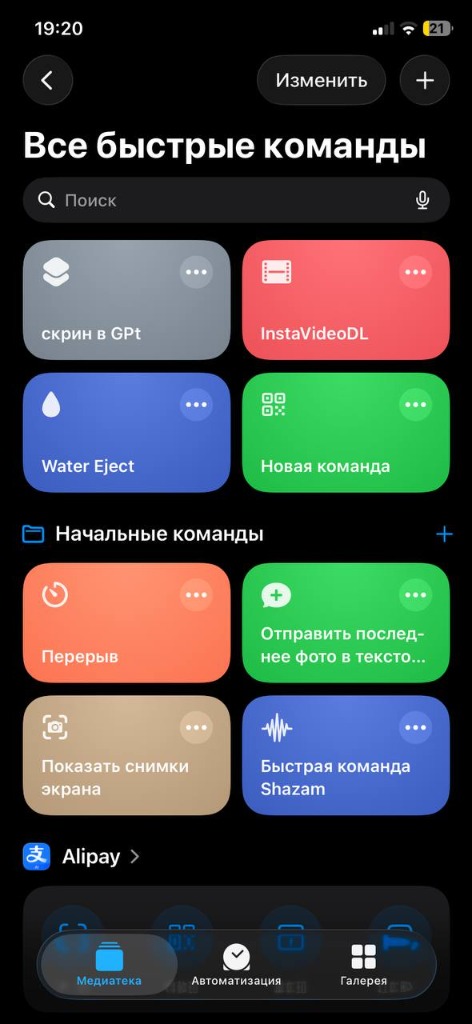
Open the native Shortcuts app on your iPhone and tap + to create a new shortcut (let's name it "AI Chat Assistant"):
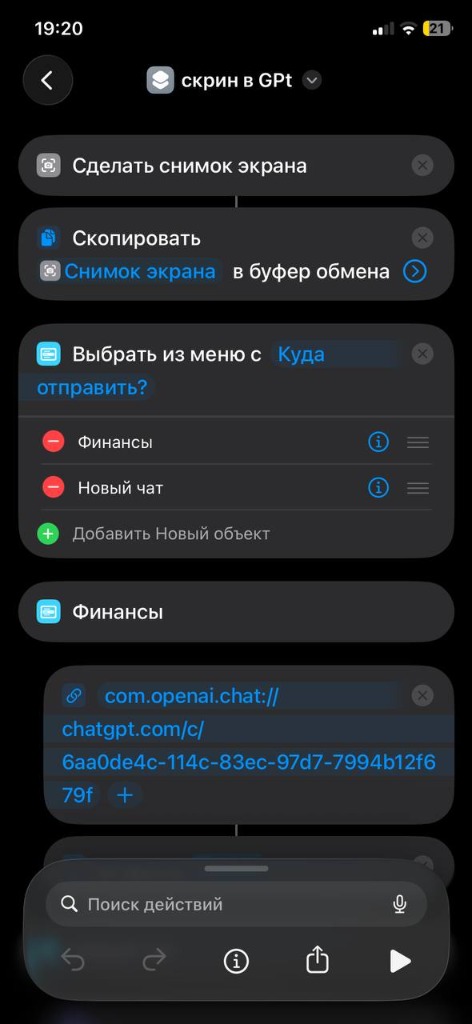
Action List inside the Shortcut:
- Take Screenshot
Captures the current screen state instantly. - Copy to Clipboard
Places the captured screenshot directly into the system clipboard. - Choose from Menu
Create menu items for your primary communication contexts:- 💼 Sales & Negotiations
- 👥 Team & Tasks
- 🧠 Psychology & Boundaries
- 🌐 General Assistant
- Inside each menu branch, add two actions:
- URL — paste the corresponding deeplink:
com.openai.chat://chatgpt.com/c/YOUR_CHAT_UUID - Open URL — opens the native ChatGPT app directly into that thread.
- URL — paste the corresponding deeplink:
Storage Optimization Tip: The "Take Screenshot" action followed by "Copy to Clipboard" does not save the image to your camera roll unless you explicitly add a "Save to Photo Album" step. The screenshot exists solely in RAM, keeping your photo library clutter-free!
Setting Up Back Tap Activation
To trigger this without searching for an app icon:
- Open iPhone Settings → Accessibility → Touch.
- Scroll to the bottom and select Back Tap.
- Choose Triple Tap (triple tap is strongly recommended over double tap to prevent accidental triggers during normal handling).
- Scroll down to the Shortcuts section and select your "AI Chat Assistant" shortcut.
Now, whenever you receive a complex or high-stakes message:
- Tap three times on the back of your phone.
- Pick the appropriate conversation context from the popup menu.
- ChatGPT opens instantly — paste the screenshot from clipboard and hit send.
The System Prompt to Initialize Your ChatGPT Thread
To ensure the AI delivers sharp, tactical breakdowns rather than generic advice, send this prompt as the first message of your dedicated chat:
You are my personal executive communication strategist, negotiation psychologist, and messaging advisor.

I will send you screenshots of incoming messages from clients, team members, partners, and prospects (Telegram, WhatsApp, Slack, email, CRM). Your task is to deconstruct the situation rapidly and provide high-leverage response options.

For each screenshot, structure your analysis strictly into 4 sections:

1. 🎯 INTENT & SUBTEXT:
— What the sender says literally vs. what they actually mean.
— Identify any manipulation tactics, passive aggression, boundary testing, false urgency, or hidden hesitations.
— The sender's current stance (dominant, passive, defensive, hesitant).

2. ⚠️ STRATEGIC RISKS:
— What NOT to say and the common mistakes 90% of people make in this scenario (e.g., over-explaining, apologizing prematurely, discounting).

3. 💬 3 TACTICAL RESPONSE OPTIONS:
— Option A [Collaborative & Diplomatic]: Warm, constructive, professional, and relationship-building.
— Option B [Firm Boundaries & Standards]: Clear, calm, assertive, establishing terms without excuses.
— Option C [Strategic Pivot / Reclaiming Initiative]: A calibrated question or statement that shifts control of the negotiation back to me.

4. 💡 KEY TAKEAWAY:
— The single most important principle for the next move in this exchange.

Write all response options in natural, conversational language. Avoid corporate jargon, robotic stiffness, and generic platitudes.
Why This Beats Third-Party Bots & API Wrappers
- Total Privacy & Security: All data flows directly into your personal OpenAI account. No middleman servers, third-party Telegram bots, or untrusted proxy logging.
- Full Multimodal Fidelity (GPT-4o): The official ChatGPT app uses the latest vision models to reliably parse low-contrast text, tiny timestamps, emojis, and nuanced UI elements.
- Long-Term Memory & Context: Keeping dedicated chats for specific key counterparties allows ChatGPT to remember historical agreements, terms, and personalities over time.
- Zero Incremental Cost: Runs seamlessly on both free and ChatGPT Plus/Team tiers without paying per-token API charges.